
Download OpenMediaVault – Free, Secure, and Easy‑to‑Use NAS Solution
Overview
OpenMediaVault (OMV) is a free and open‑source network‑attached storage (NAS) platform built on the rock‑solid Debian Linux distribution. First released in 2009 by Volker Theile, OMV has grown into one of the most popular DIY NAS solutions for home users, small offices, and hobbyists who want to avoid the cost of commercial appliances. By leveraging Debian’s stability and a lightweight web‑based management interface, OpenMediaVault lets you spin up a fully functional NAS with services such as SMB/CIFS, NFS, FTP, SFTP, RSync, and even a BitTorrent client—all without requiring deep Linux expertise.
The core system offers essential storage features like RAID management, SMART monitoring, and user‑quota control, while a vibrant plugin ecosystem extends the platform with media servers, cloud sync, Docker support, and more. Because OMV runs on modest hardware, you can repurpose an old PC, a Raspberry Pi, or a dedicated low‑power box into a reliable file server that scales as your data needs grow. Frequent updates, an active community forum, and extensive documentation make it a secure and future‑proof choice for anyone looking to build a custom NAS on a budget.
Key Features & Extensible Plugins
- Web‑Based Administration: A clean, responsive UI that runs in any modern browser, allowing you to configure storage, services, and users from anywhere on your network.
- RAID Support: Native software RAID (0, 1, 5, 6, 10) with real‑time monitoring and automatic rebuild options.
- File‑Sharing Protocols: SMB/CIFS for Windows, NFS for Unix/Linux, FTP/SFTP for remote access, and AFP for legacy macOS clients.
- Backup & Sync Tools: Integrated RSync, Duplicati, and cloud sync plugins (Nextcloud, OwnCloud, Google Drive, Dropbox).
- Media Services: Plugins for DLNA/UPnP, Plex, and MiniDLNA turn your NAS into a home‑media hub.
- Docker & Virtualization: Docker‑compose and Portainer plugins let you run containers directly on the NAS.
- BitTorrent Client: Built‑in transmission-daemon with web UI for automated torrent downloads.
- SMART & Health Monitoring: Real‑time disk health alerts, temperature tracking, and automated email notifications.
- User & Group Management: LDAP integration, ACL support, and granular permission controls.
- Extensive Plugin Repository: Over 40 officially maintained plugins plus community‑contributed extensions for VPN, ZFS, Ceph, and more.
Installation, Configuration & Daily Usage
Getting OpenMediaVault up and running is intentionally straightforward. First, download the latest ISO image from the official site and write it to a USB stick using tools like Rufus or Etcher. Boot the target machine, follow the guided installer (which automatically partitions the boot drive and sets up a minimal Debian base), and reboot into the freshly installed OMV system. The default web UI is reachable at http://your‑nas‑ip/ on port 80. Log in with the default credentials (admin / openmediavault) and immediately change the password for security.
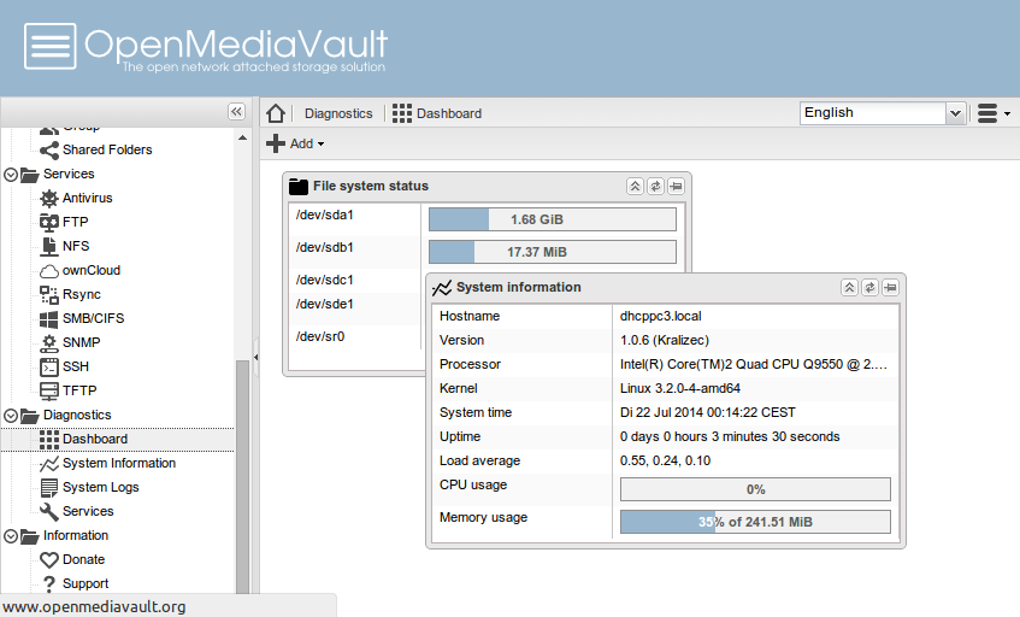
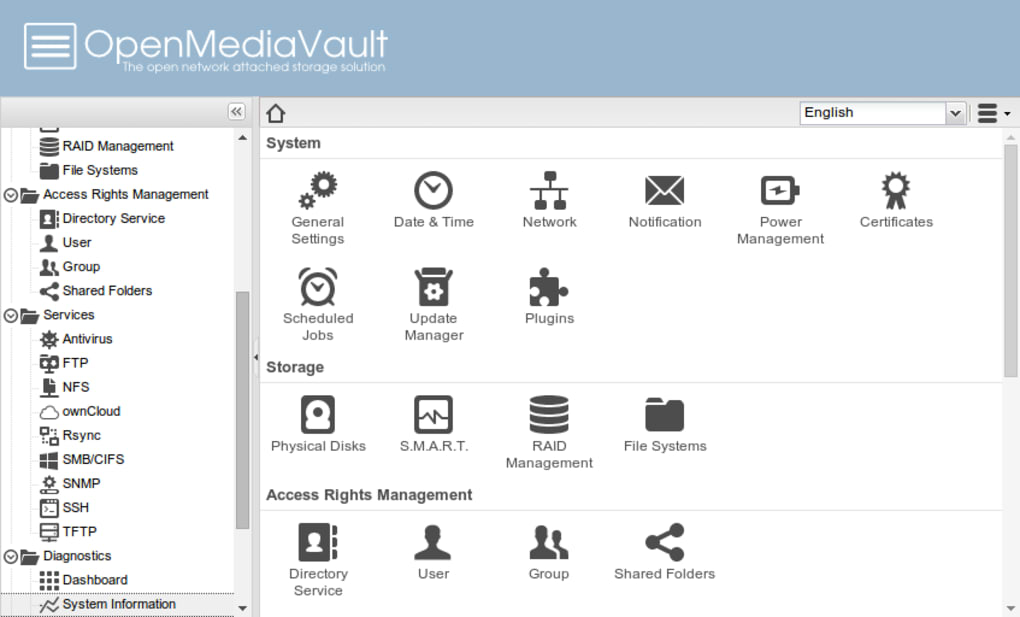
The first steps in the UI involve adding storage devices under Storage → Disks, creating a file system (EXT4, XFS, Btrfs, or ZFS via plugins), and assembling a RAID array if desired. Once the logical volume is ready, you can define shared folders, assign access rights, and enable services such as SMB or NFS with a few clicks. Plugins are installed from the System → Plugins menu; simply select the desired package and click “Install.” After installation, most plugins add their own configuration page, making further setup intuitive.
Daily operation is handled through the same web UI or via standard command‑line tools for advanced users. Users can mount shares on Windows, macOS, or Linux clients, schedule automated backups with RSync, or stream media directly to smart TVs using the DLNA plugin. The system also supports remote access via VPN plugins, allowing you to reach your files securely over the internet. Regular updates are pushed through the built‑in package manager, ensuring you stay protected against vulnerabilities without manual patching.
Compatibility, System Requirements & Technical Details
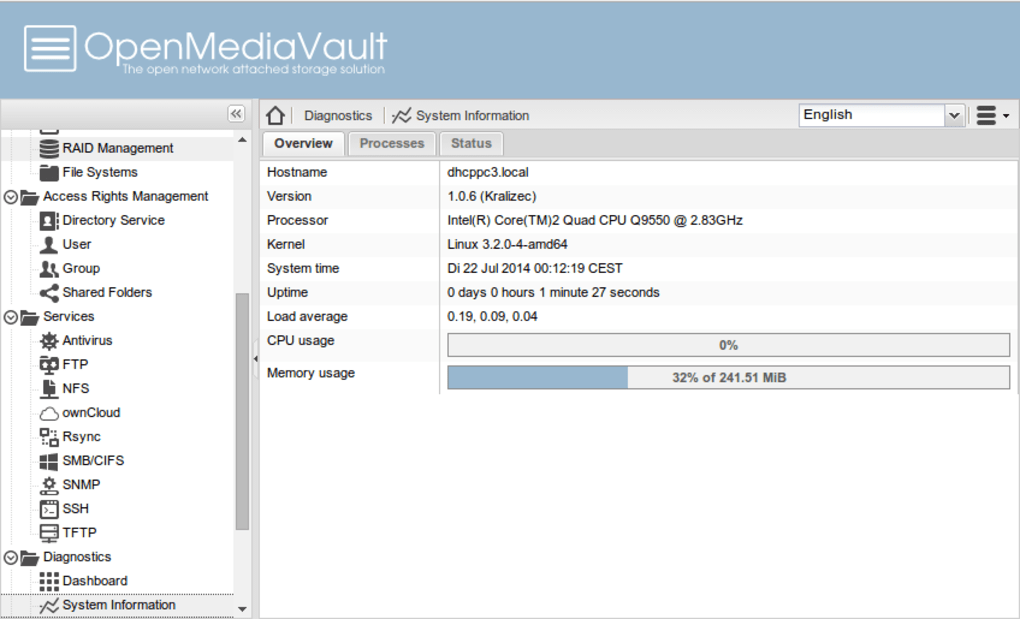
OpenMediaVault is built on Debian 12 “Bookworm,” which means it inherits the broad hardware compatibility of the underlying Linux kernel. The software runs on virtually any x86_64 machine, from old desktops with as little as 2 GB RAM and a modest dual‑core CPU to modern low‑power SBCs like the Raspberry Pi 4 (ARM v8). For optimal performance with multiple concurrent users or heavy RAID workloads, a minimum of 4 GB RAM and a quad‑core processor is recommended. Storage devices can be SATA, SAS, or USB‑connected, and the system supports up to 64 TB per volume when using modern file systems.
Because OMV is a server‑grade Linux distribution, it can be installed on headless hardware and accessed entirely via the web interface. The platform is fully compatible with Windows 10/11 (SMB/CIFS), macOS Ventura (AFP/NFS), and Linux desktops (NFS, SMB). Mobile access is possible through third‑party apps that support SMB or WebDAV, and the built‑in FTP/SFTP services provide cross‑platform file transfers. OpenMediaVault also works seamlessly in virtualized environments such as Proxmox, VMware ESXi, or VirtualBox, making it an excellent choice for test labs or multi‑tenant setups.
Security‑wise, OMV benefits from Debian’s regular security patches, and the web UI can be forced to use HTTPS by installing a Let’s Encrypt certificate via the “TLS/SSL” plugin. Firewalls can be configured through the “Firewall” plugin, and Fail2Ban integration helps protect SSH and web login attempts. All these features combine to deliver a robust, secure NAS solution that scales from a single‑user home office to a small‑business environment.
Pros, Cons & Frequently Asked Questions
Pros
- Completely free and open‑source – no hidden licensing fees.
- Runs on low‑end hardware, extending the life of older PCs.
- Extensive plugin ecosystem for media, cloud, Docker, and more.
- Debian‑based stability with regular security updates.
- Web UI is intuitive for beginners yet powerful for advanced users.
Cons
- Initial setup can be intimidating for users unfamiliar with Linux.
- Advanced features (e.g., ZFS) require additional plugins and manual configuration.
- Limited official support; reliance on community forums for troubleshooting.
- Performance on very large arrays may lag behind commercial NAS firmware.
FAQ
Can I install OpenMediaVault on a Raspberry Pi?
Yes. OMV provides a dedicated ARM image for Raspberry Pi 2/3/4, allowing you to create a compact, low‑power NAS with up to 4 TB of external storage.
Is OpenMediaVault suitable for business use?
While OMV is primarily aimed at home and small‑office environments, its RAID, user‑quota, and LDAP integration make it viable for small businesses that need a cost‑effective file server.
How do I secure remote access to my OMV server?
Install the “OpenVPN” or “WireGuard” plugin, enable HTTPS with Let’s Encrypt, and optionally configure Fail2Ban to protect against brute‑force attempts.
Can I use ZFS on OpenMediaVault?
ZFS is not included in the core installation, but the “openmediavault‑zfs” plugin adds full ZFS support, including pools, snapshots, and replication.
What backup strategies does OMV recommend?
Combine local RAID redundancy with off‑site backups using the RSync plugin, Duplicati, or cloud sync plugins to protect against hardware failure and ransomware.
Conclusion & Call to Action
OpenMediaVault delivers a compelling blend of flexibility, affordability, and community‑driven development that makes it one of the most reliable DIY NAS platforms available today. Whether you’re repurposing an old laptop, building a media‑rich home server, or providing file services for a small office, OMV’s modular plugin system and Debian foundation give you the tools to scale as your needs evolve. The learning curve is modest for anyone comfortable with basic Linux concepts, and the wealth of tutorials, forum posts, and official documentation smooths the onboarding process.
Ready to take control of your data and say goodbye to pricey proprietary storage boxes? Download OpenMediaVault now, follow the quick installation guide, and start customizing your own secure, high‑performance NAS today. Your files, your rules—powered by open‑source excellence.







